Home
>
All Guides
>
How to Download your data from Gemini
📄 How to Download your data from Gemini
 Your Guide to Downloading Your Gemini Data
Hi there! This guide will walk you through how to download a copy of your Gemini information.
Phase 1: Starting Your Request
- Begin Your Journey: Head to Google Takeout, which is Google's official data hub. You can go directly here: https://takeout.google.com
- A Fresh Start: On the first menu, you’ll see many Google services listed. To make things easy, click “Deselect all” at the top. This helps us focus only on Gemini.
- Find Gemini: Scroll down the list until you find “Gemini”. Once you see it, simply check the box to its right to select it. That’s the only box you need to check for this process.
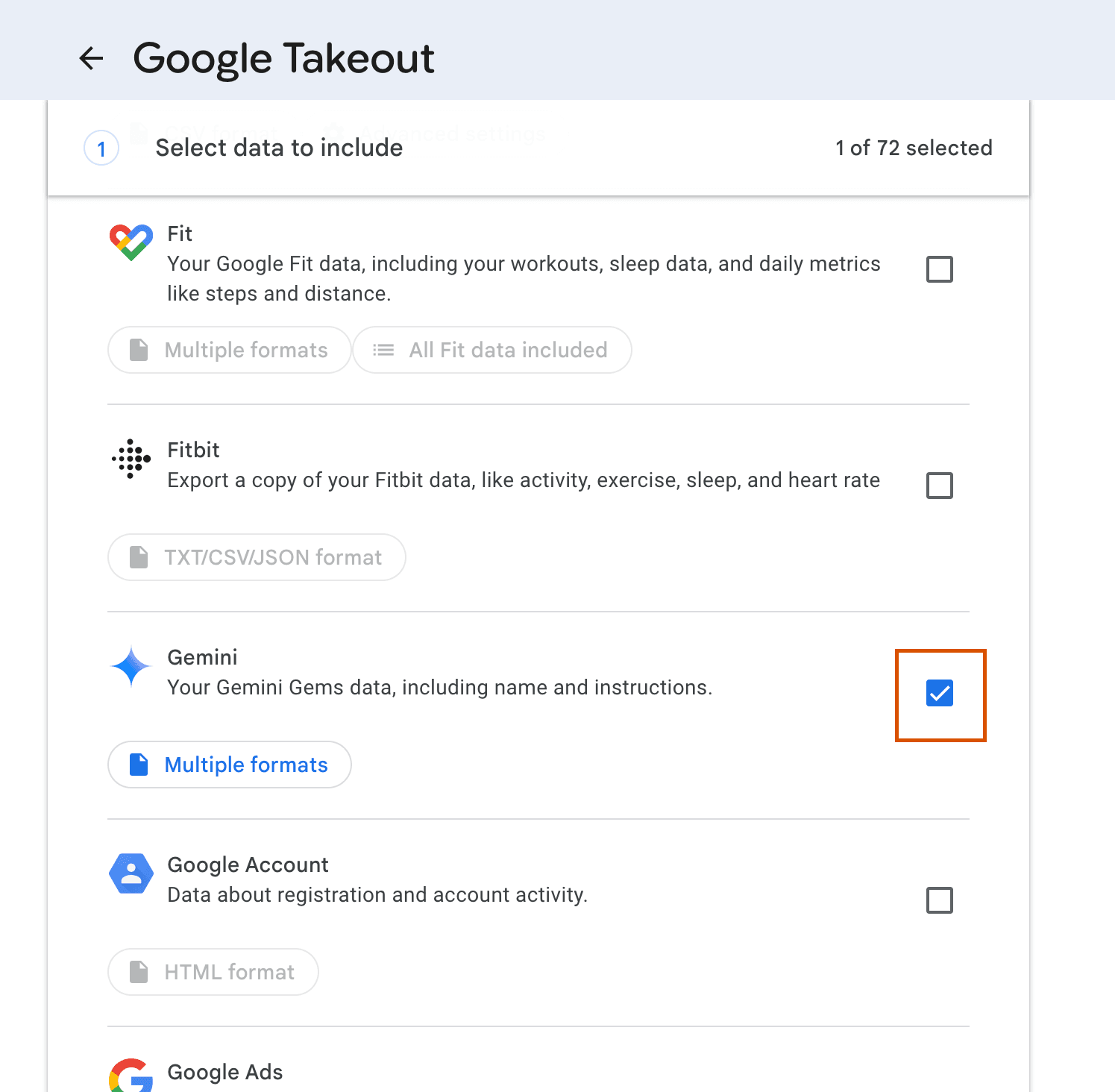
- Move Forward: Scroll to the bottom of the list and click the blue “Next step” button.
Phase 2: Choosing How to Receive Your Data
You’ll now see a screen titled “Choose file type, frequency & destination.” Don’t worry, we only need to adjust a couple of settings.
- Delivery Method: Under “Delivery method,” use the dropdown menu. We recommend selecting “Send download link via email” so the link comes right to your inbox. You can choose another option if you prefer.
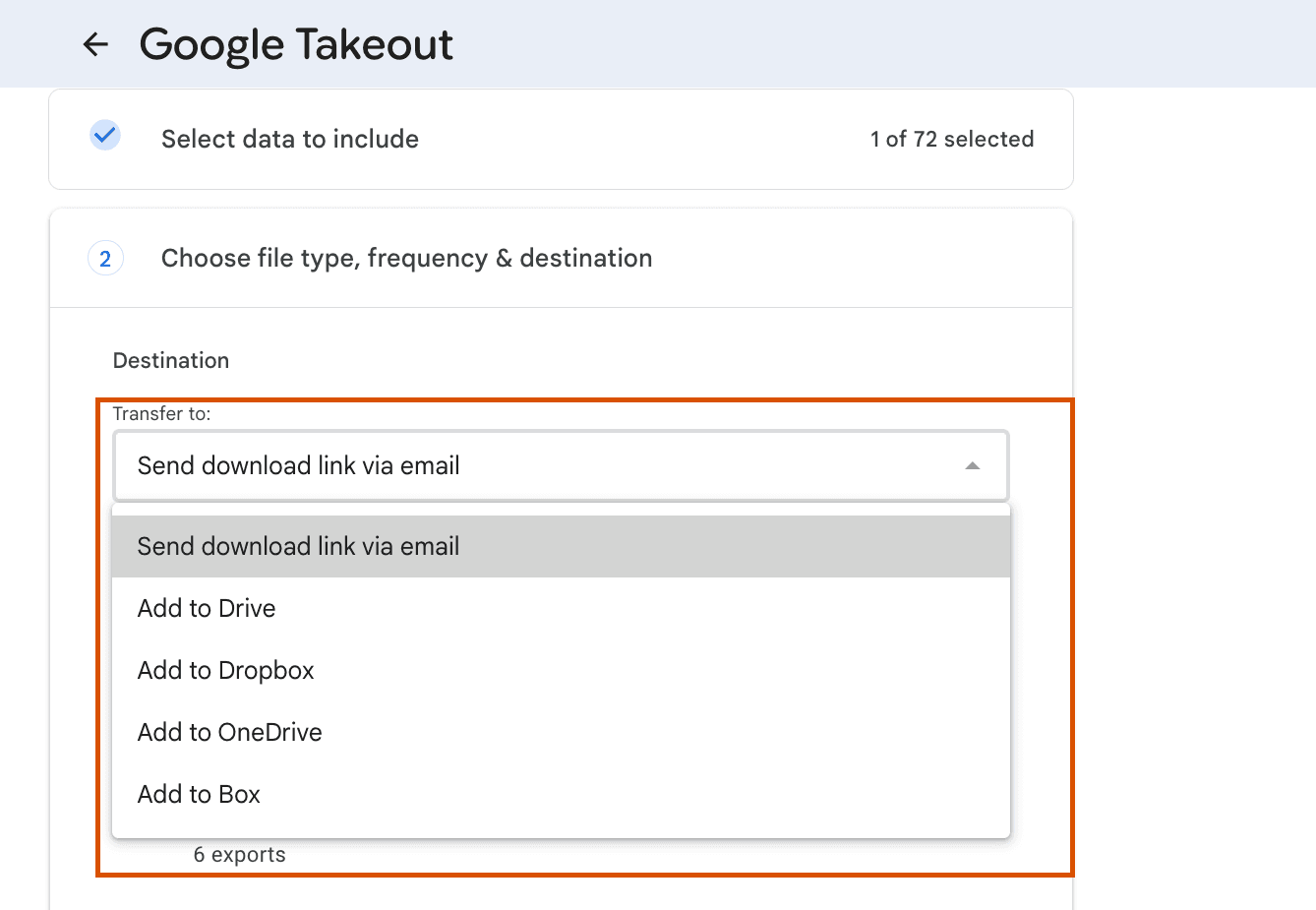
- Frequency: Please ensure “Export once” is selected. You won’t need to change any other settings here.
- Create the Export: Almost there! Click the “Create export” button on the lower left. Your request is now in Google’s hands!
Phase 3: Waiting & Downloading
- A Little Patience: Google will now prepare your data file. This can take a few hours, or sometimes even a couple of days, depending on how much data there is. You’ll see a progress bar. You can close the page. You’ll get an email when it’s completely ready.
- Check Your Email: Look for an email from Google with the subject “Your Google data archive is ready.” Inside, click the button that says “Manage Google Takeout Request.”
Final Download: This link will take you to a simple page with a big “Download” button. Click it to save the data file (it will be a .zip file) directly to your computer or device.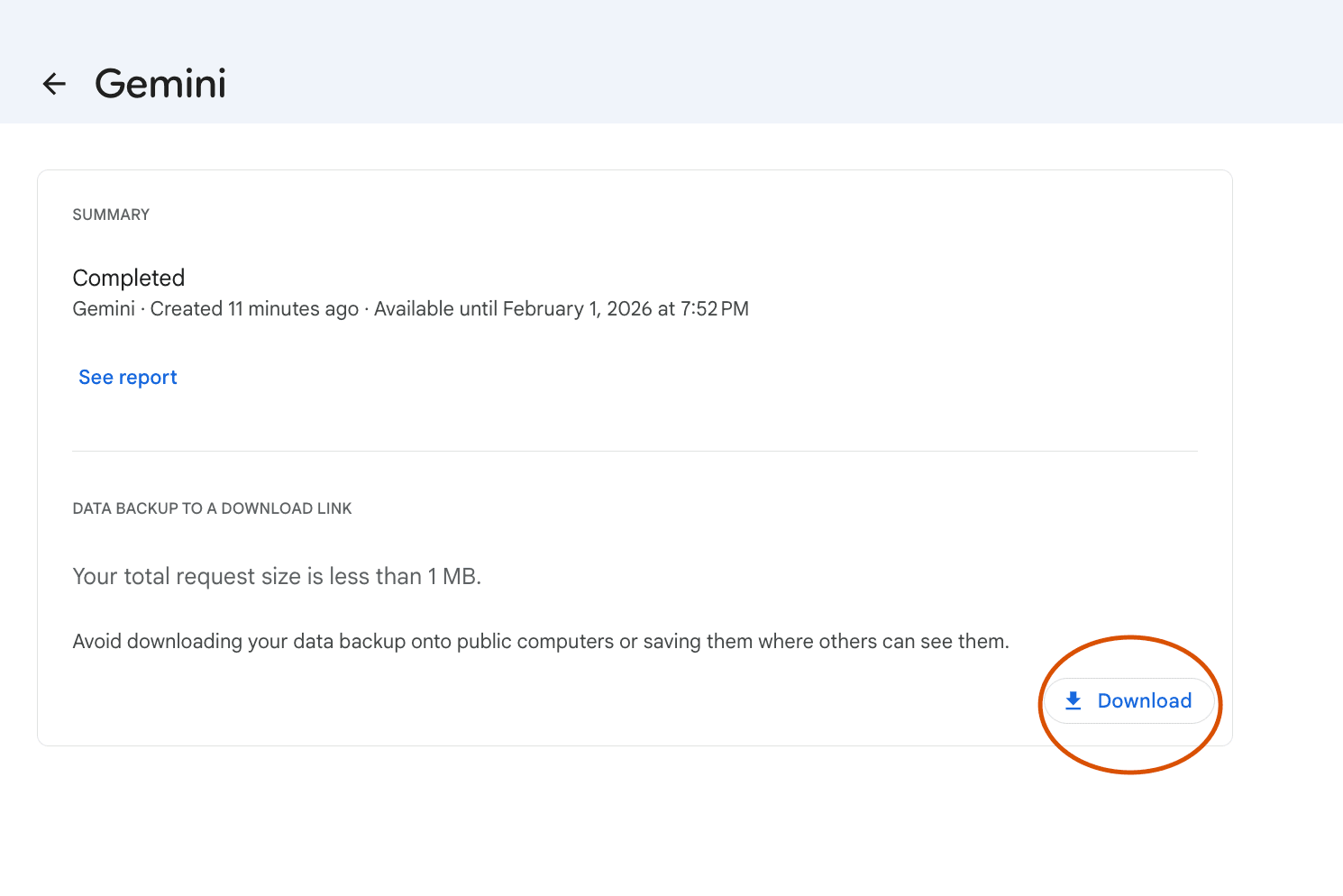
Other Guides
📄 How to Download your ChatGPT data
📄 Troubleshooting Datacy Extension Issues
📄 How to Download your data from Gemini
📄 How to Generate your Referral Link
📄 How to Monetize your Web Browsing
📄 How Much will I Earn using Datacy
📄 Getting Matched with Other Opportunities
📄 How to Request your Data from Instagram
📄 Datacy’s Frequently Asked Questions (FAQ)
📄 Download and Sign-Up for Datacy
📄 What are the Key Features of Datacy
📄 Can I Use Datacy on my Phone
📄 What is Datacy
📄 Your Data Privacy is Our Top Priority
📄 How to Connect your Social Media Apps
📄 Tips: Earning More Rewards Browsing with Datacy
📄 Which Browsers Support Datacy
📄 Understanding the Earnings Page on the Datacy Dashboard
📄 Getting Started
📄 Verifying your PayPal Account
📄 Payment Methods for Datacy
📄 How to Use the Earnings Tab
📄 What Happens to my Collected Data
📄 Tips: Get Matched with Brand Communities on Datacy
📄 Generate your Referral code on the Datacy Dashboard
📄 How to Manage your Data Preferences
📄 How to Make Data Deletion Requests
📄 How To Request your Data from Tiktok
📄 3 Tips to Maximize your Earnings with Datacy
📄 How to Earn and Benefit from your Data with Datacy!
📄 Setting up a Datacy Account
📄 Seamlessly Connect Your PayPal to the Datacy Extension
📄 How do I Cash Out Datacy Payments
📄 What Countries are Supported by Datacy
📄 Surf to Datacy FAQ
📄 How do I Earn with Datacy
📄 How to Connect Reddit, X, and Youtube to Datacy
📄 Key Features of Datacy
📄 How to Restrict Websites from your Datacy Dashboard
📄 Connect Datacy with Stripe
⬅️ Back to Knowledge Base